
Scheduled for Friday, November 6 at 7:00 p.m. EST
Watch this space for updated information during the migration weekend.
Before the move
Complete the checklist by end of day Friday, November 6.
Show instructions
Open speedway.okta.com. Sign in if asked.
You’re done when you can see your Okta dashboard.
Need to set up Okta Verify?
Okta Verify is the app that helps confirm it’s you when you sign in.
- Install Okta Verify on your phone. Choose your phone below. Check that the developer is Okta.
- Start setup on your computer. Go to speedway.okta.com and sign in with your company sign-in name and password. Follow the prompts to set up Okta Verify.
- Connect your phone. Open Okta Verify and follow the prompts to add your work account. When the QR code appears on your computer, scan it from inside Okta Verify. Allow camera access when asked.
- Finish the prompts on both devices. Then check that you can reach your Okta dashboard.
Missing setup instructions or unable to scan? Contact IT.
Can’t get in? Contact IT before the move.
Show instructions
Use the sign-in name in your email from IT. It may differ from your email address.
Show instructions
Copy files you need from OneDrive, Teams and SharePoint to your company Box account by end of day Friday, November 6.
You can also open Box from your Okta dashboard.
Show instructions
Learn more about Outlook for iOS and Android.
Already have Outlook? You don’t need to sign in or change anything yet. We’ll cover that after the migration is complete.
Show instructions
Leave your laptop or desktop on and connected Friday evening, November 6. IT will run a reset script to clear the old account information and get Office ready for you to sign in to the new account.
After the move
Wait until IT confirms the migration is complete, then choose your device.
Sign in on your Windows work computer
After IT completes the migration and reset, open Outlook on your computer.
- If you see Sign in to get started with Outlook, select Sign in or create account. Enter your work email address and select Next.
- At the Okta screen, enter your password and select Verify. If asked to choose a security method, select Get a push notification.
- Open Okta Verify on your phone and approve the sign-in you started.
- If asked to sign in to all apps and websites on your company computer, select Yes. Wait for registration; if the account-added screen appears, select Done.
- When Outlook asks for your email address, check that it is correct, then select Connect.
- On Account successfully added, ignore the field for another email address, clear the Outlook Mobile checkbox if selected, then select Done.
- Open Word or Excel. If asked to sign in, use your work account and follow any Okta prompts.
You’re done when Outlook opens your work mailbox and calendar, and you can use your Office apps.
It may take some time for all your email to sync to your computer.
See sign-in screens
Follow the screens in order. Your prompts may vary.
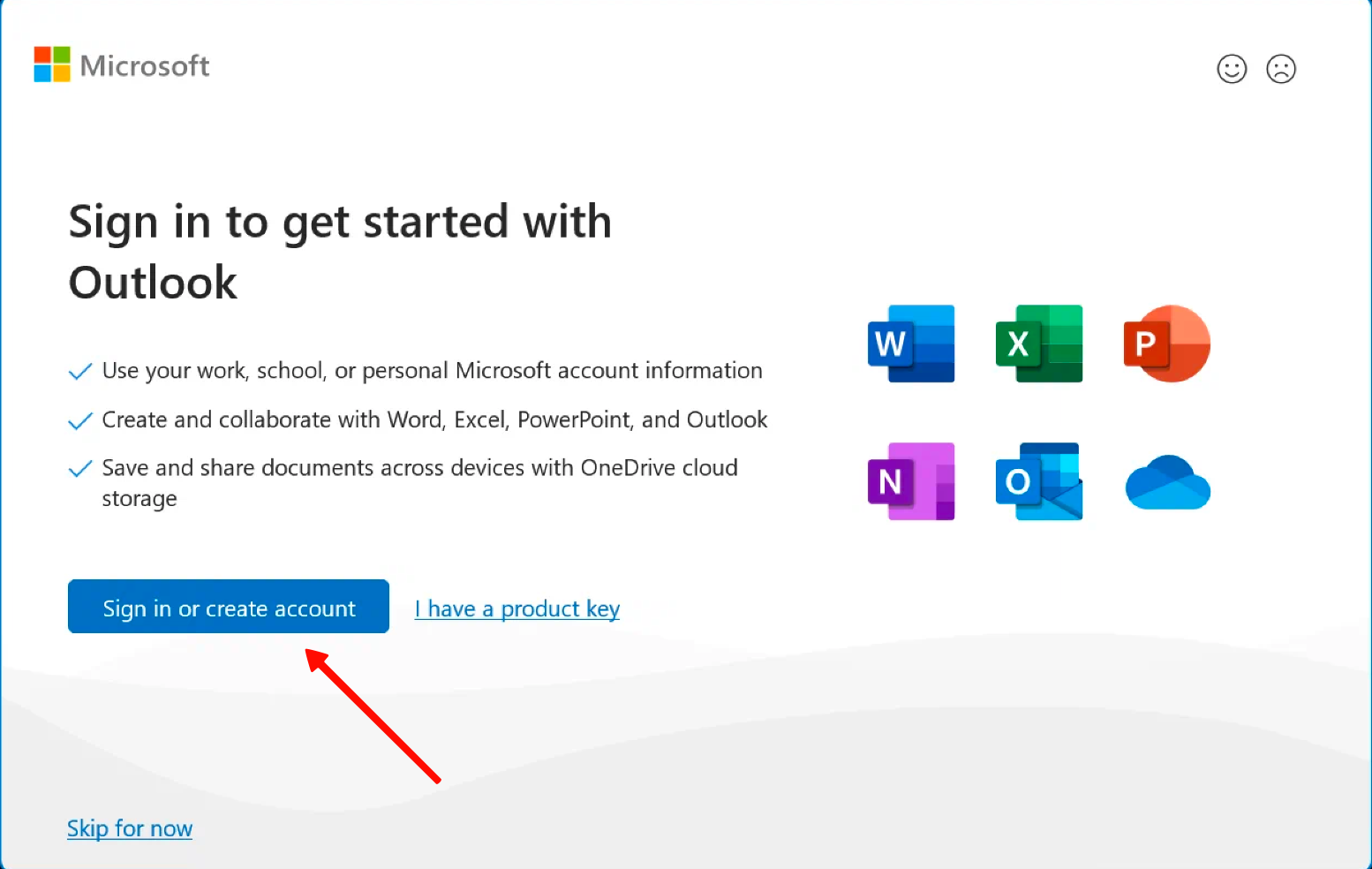
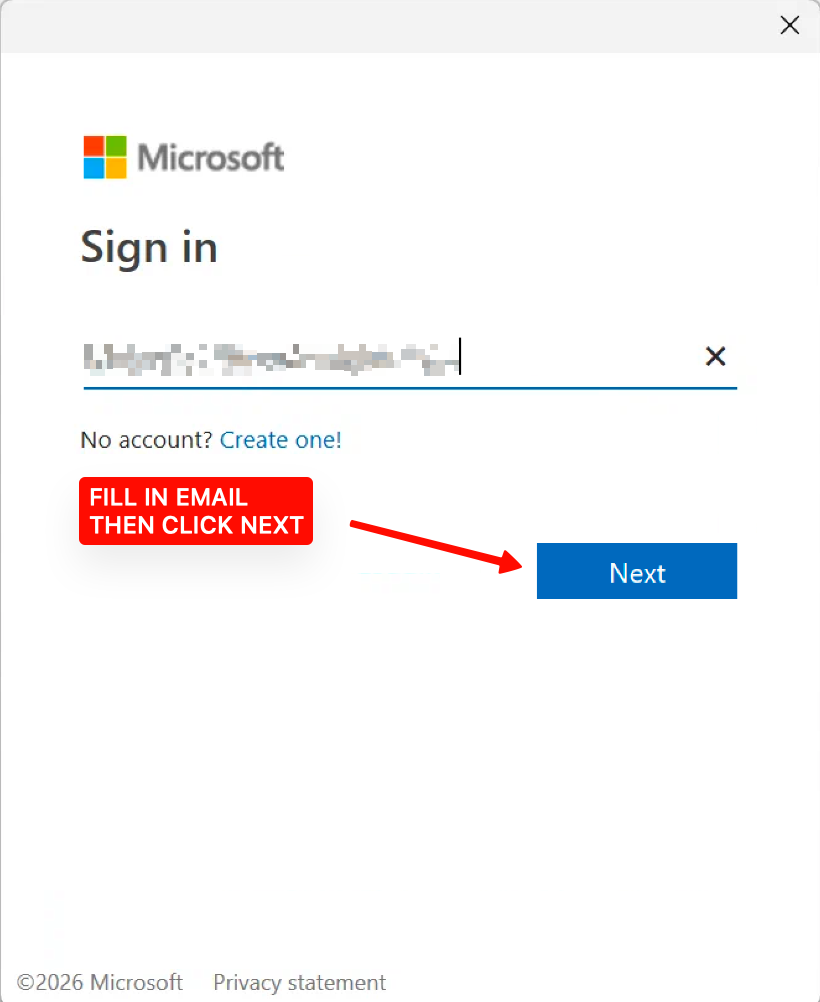
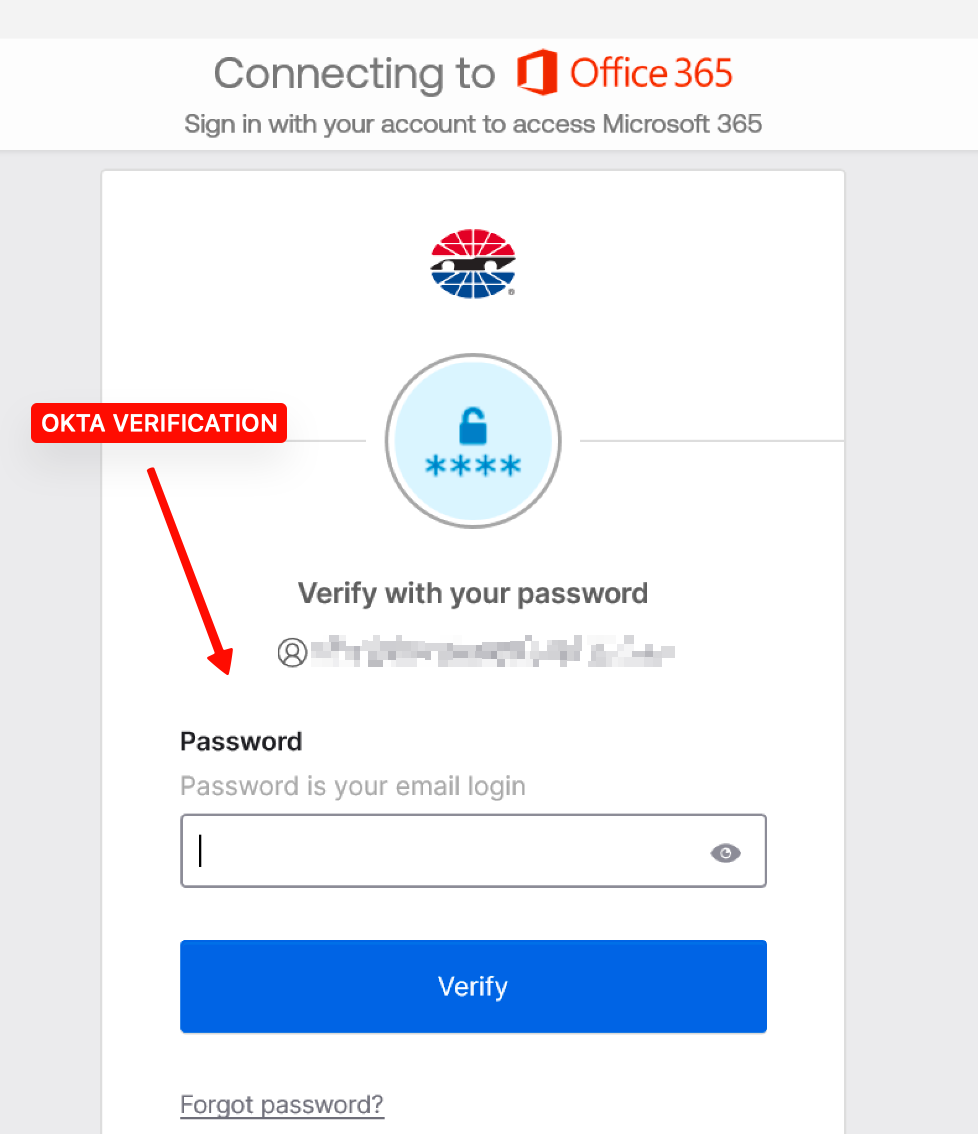
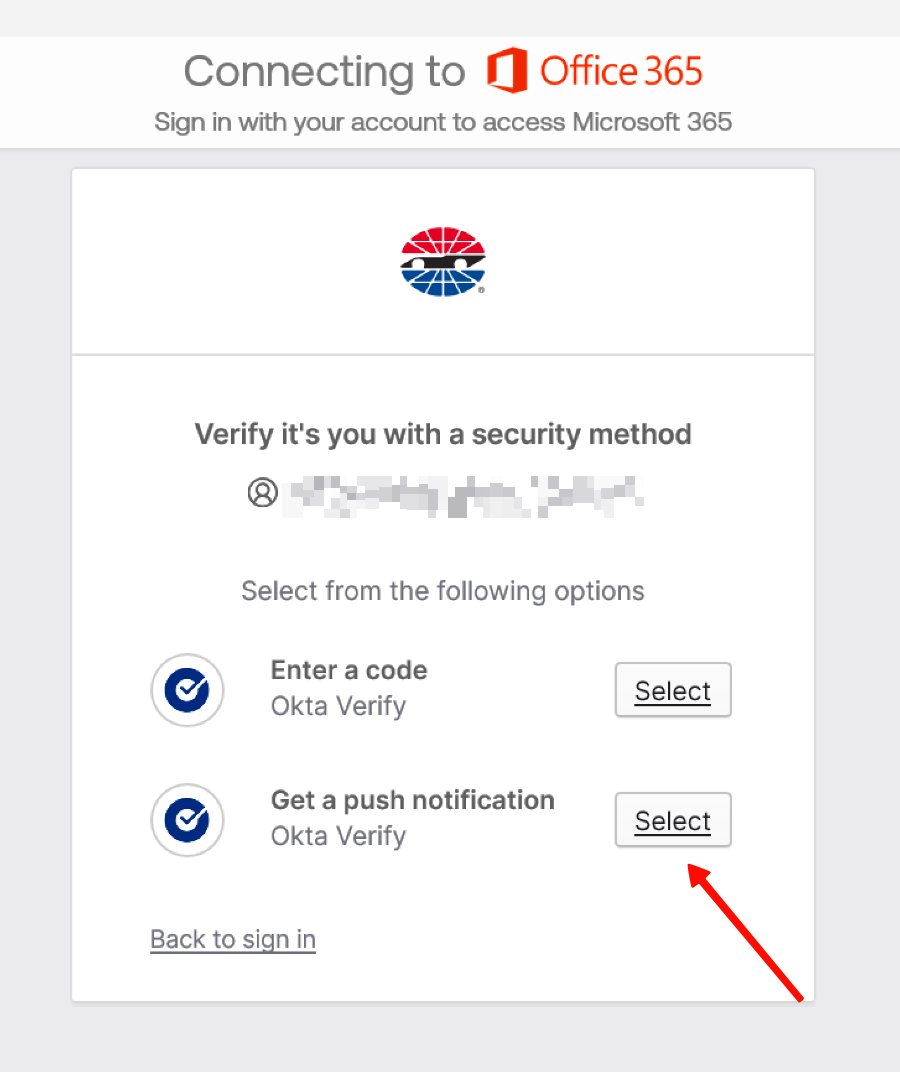
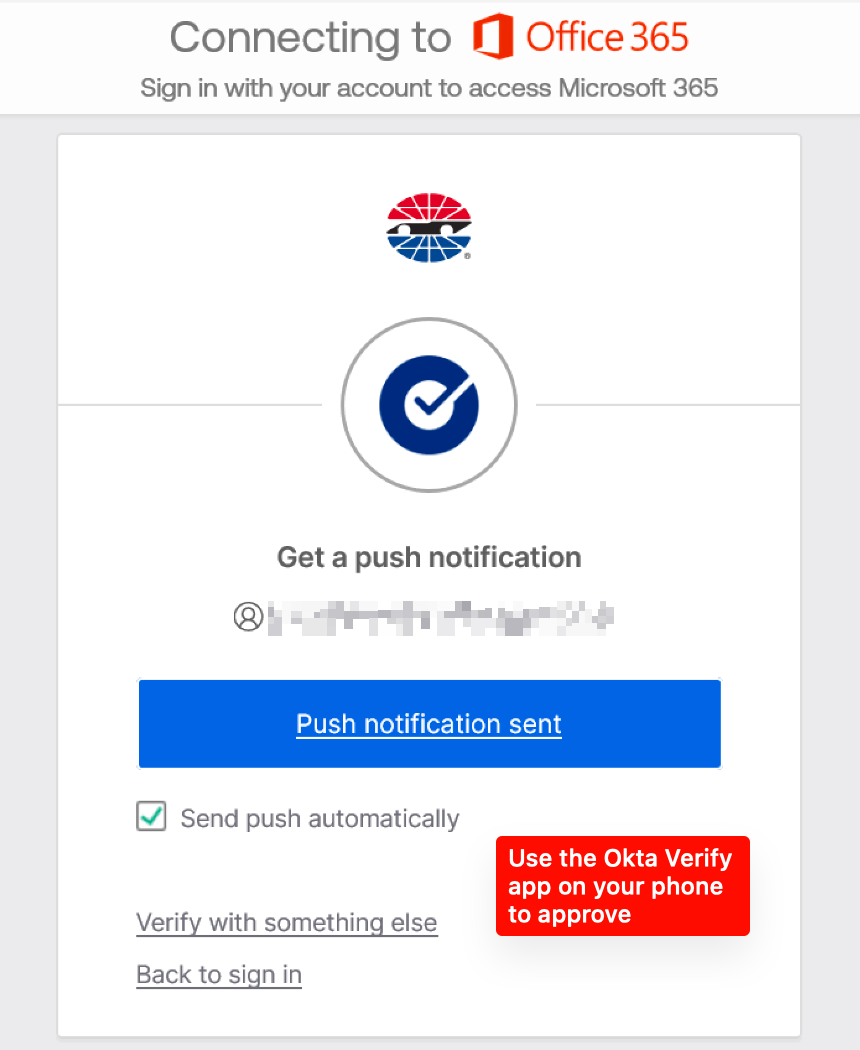
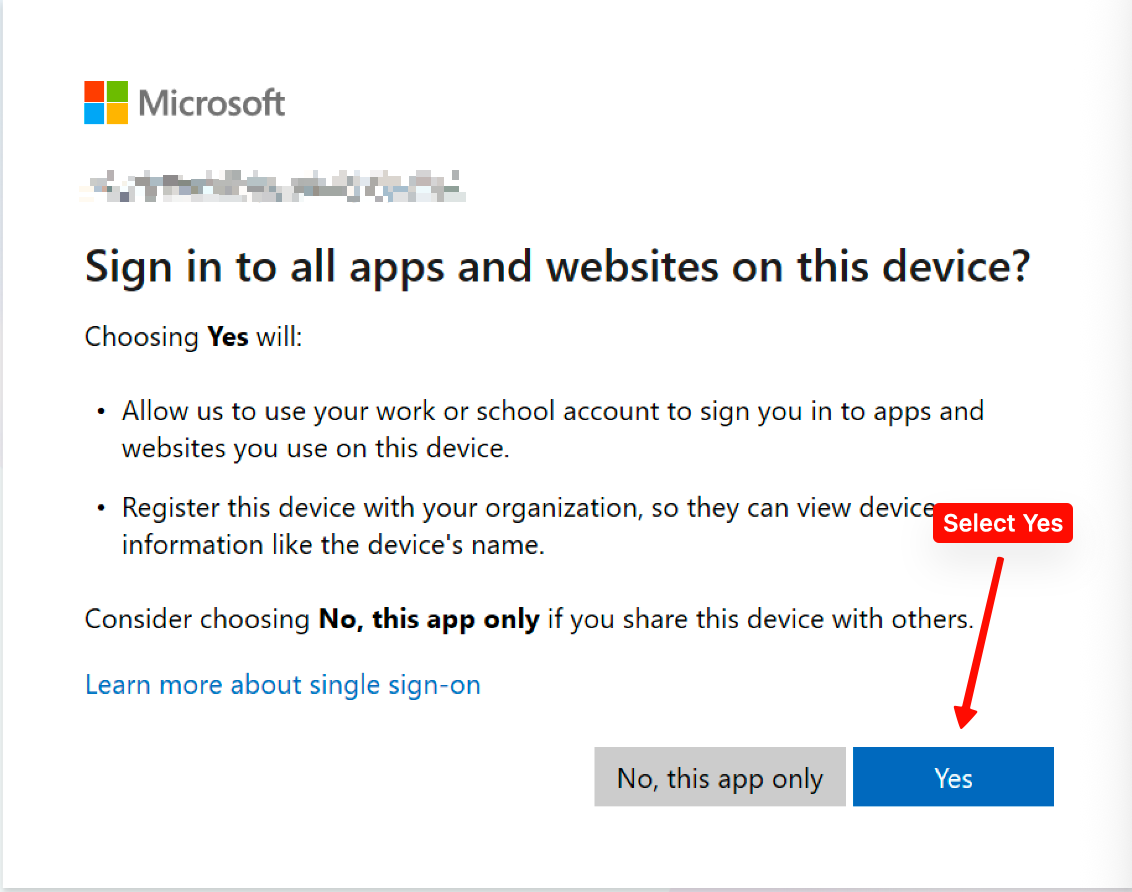
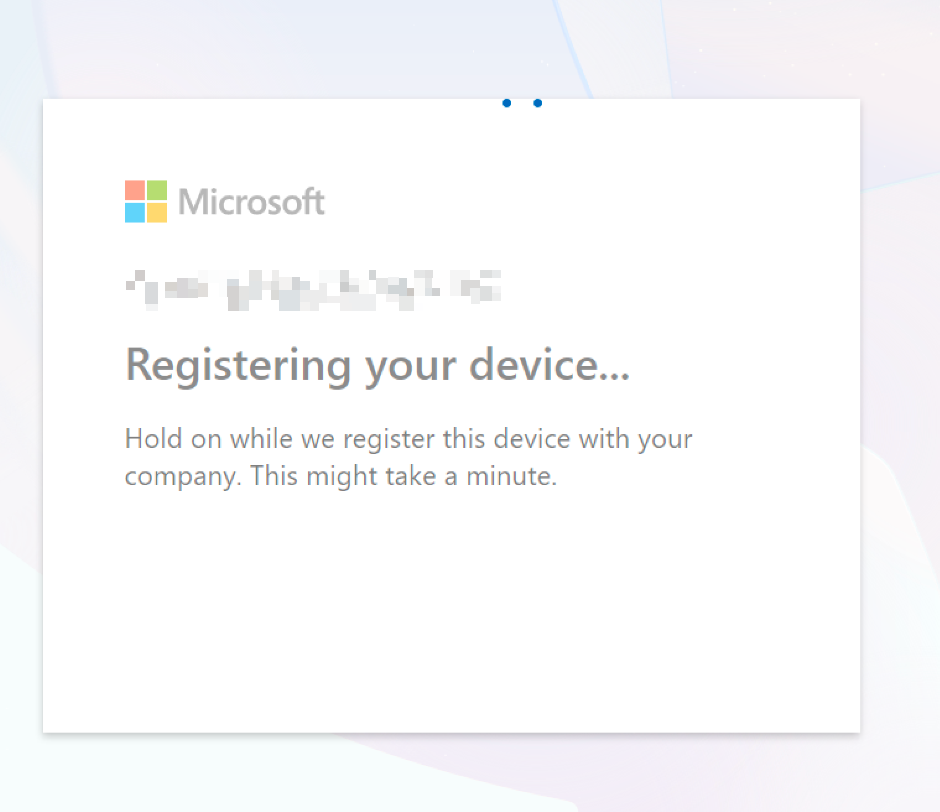
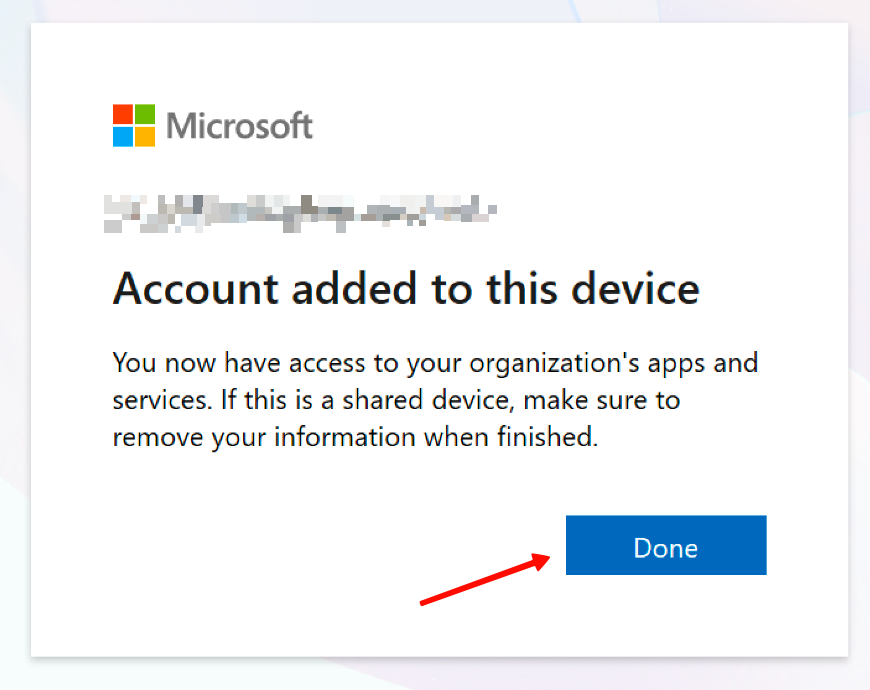
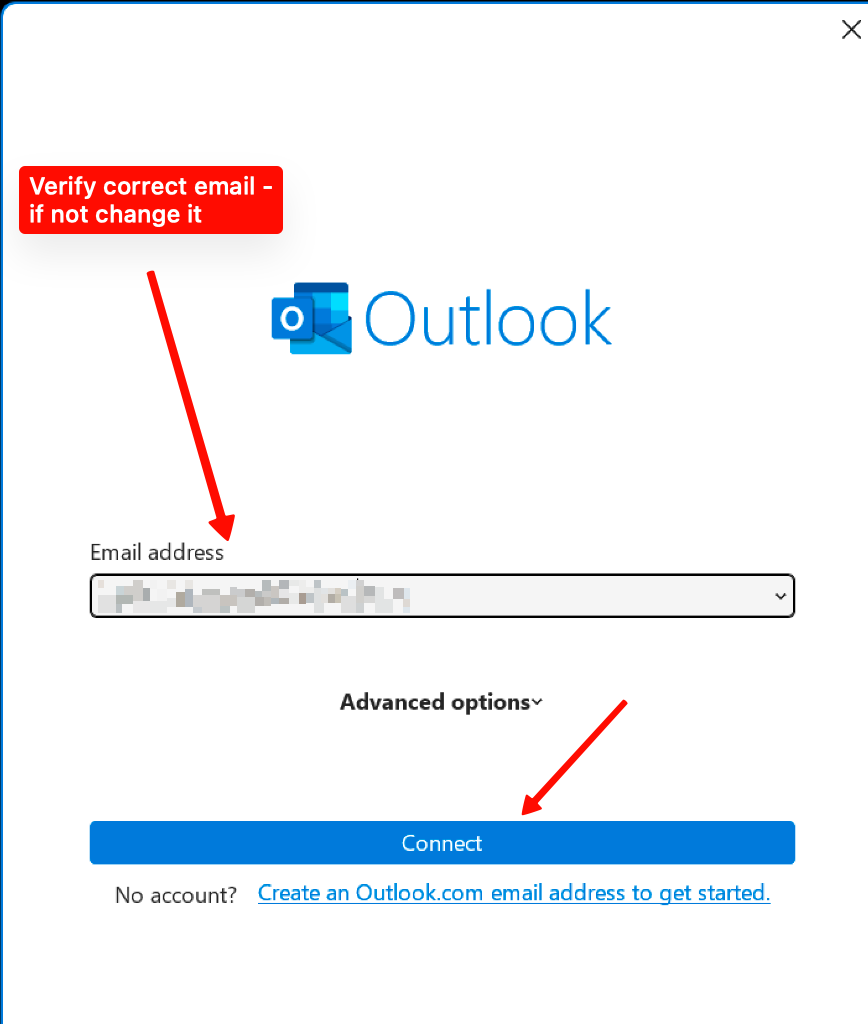
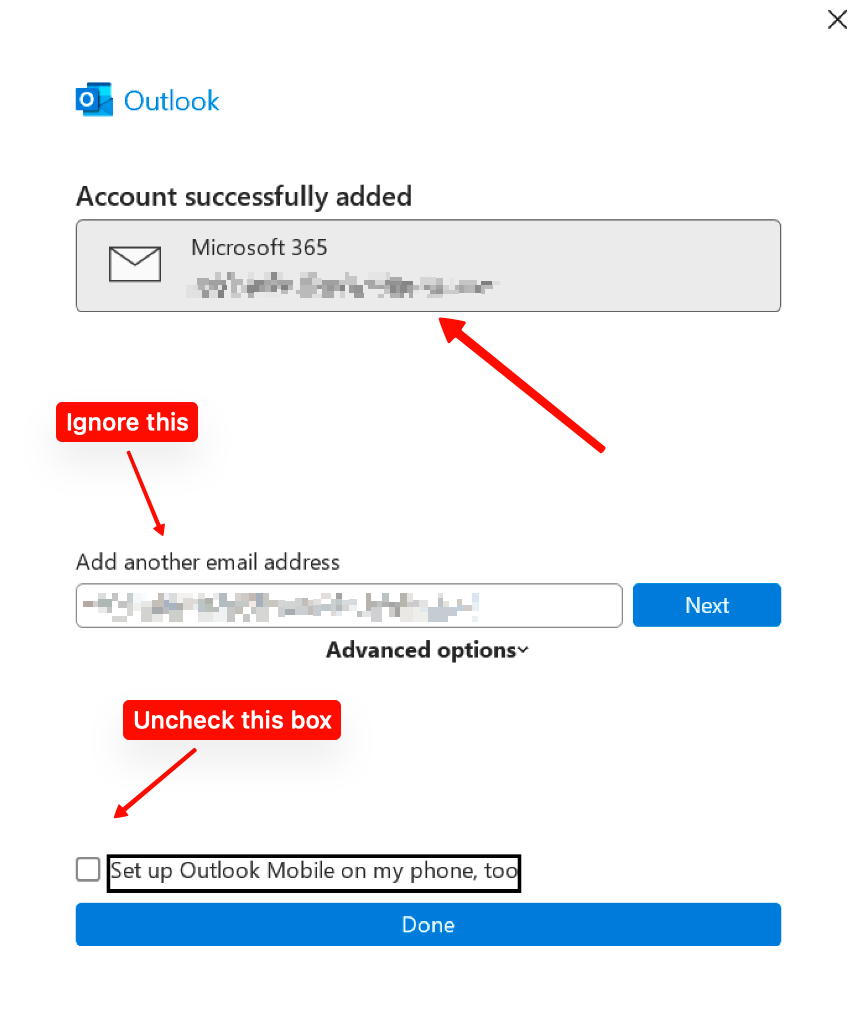
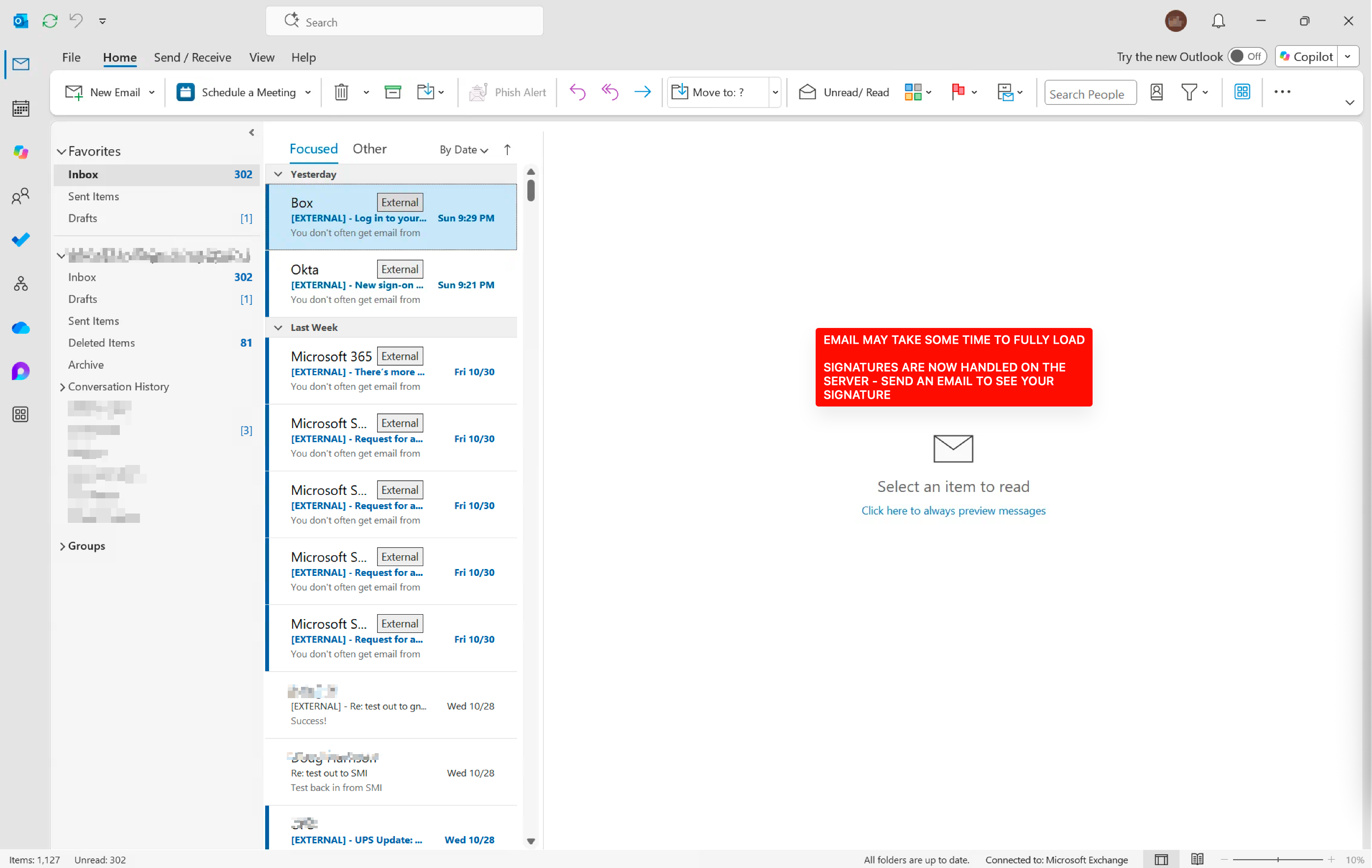
If the screens look different or you can’t sign in, contact IT. In the meantime, you can try Outlook on the web.
Sign in on your Mac work computer
After IT confirms the migration is complete, open Outlook.
- Enter your work email address and select Continue. If you need to add your account first, choose Outlook → Settings → Accounts → Add Account.
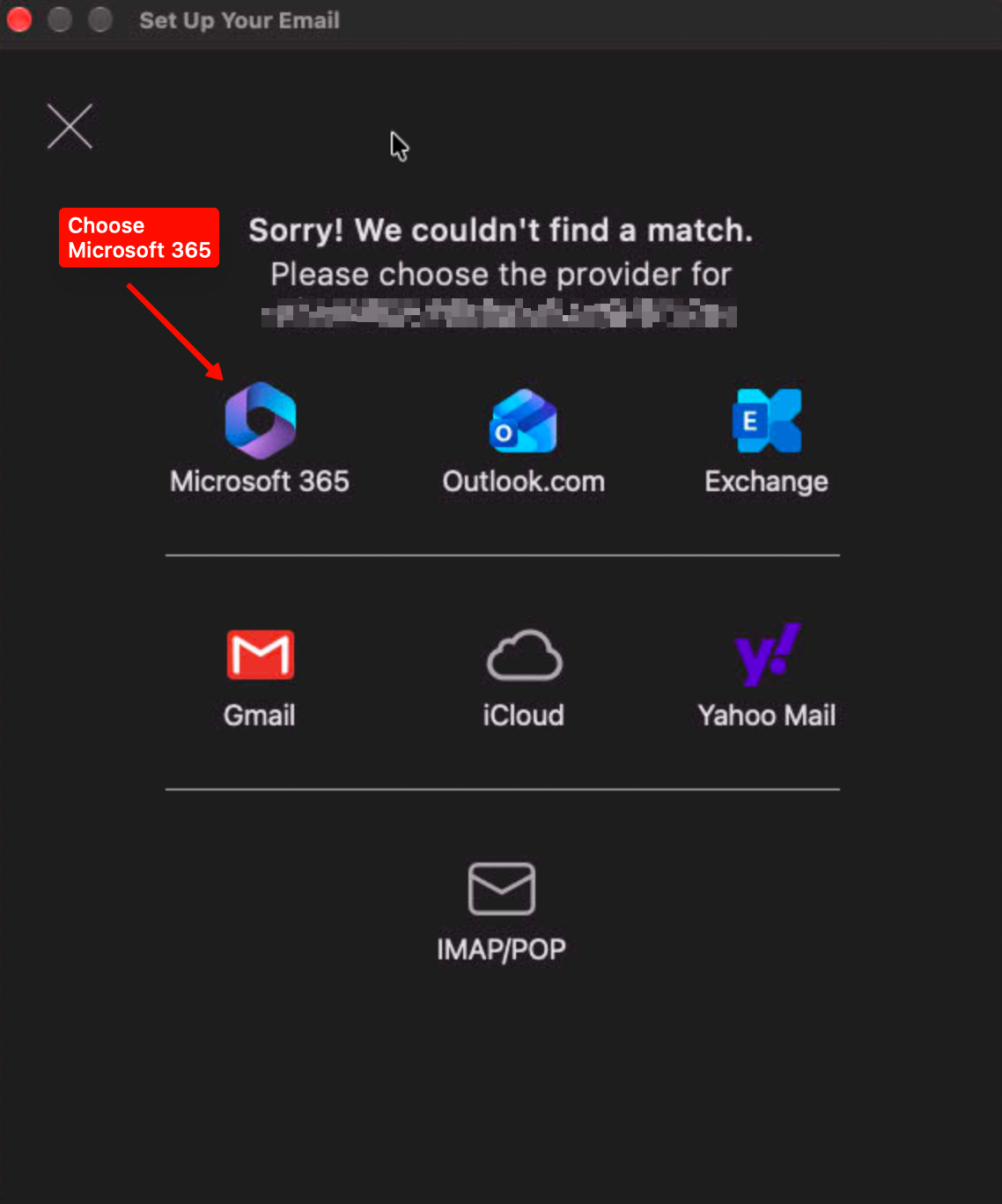
- If Outlook asks you to choose a provider, select Microsoft 365.
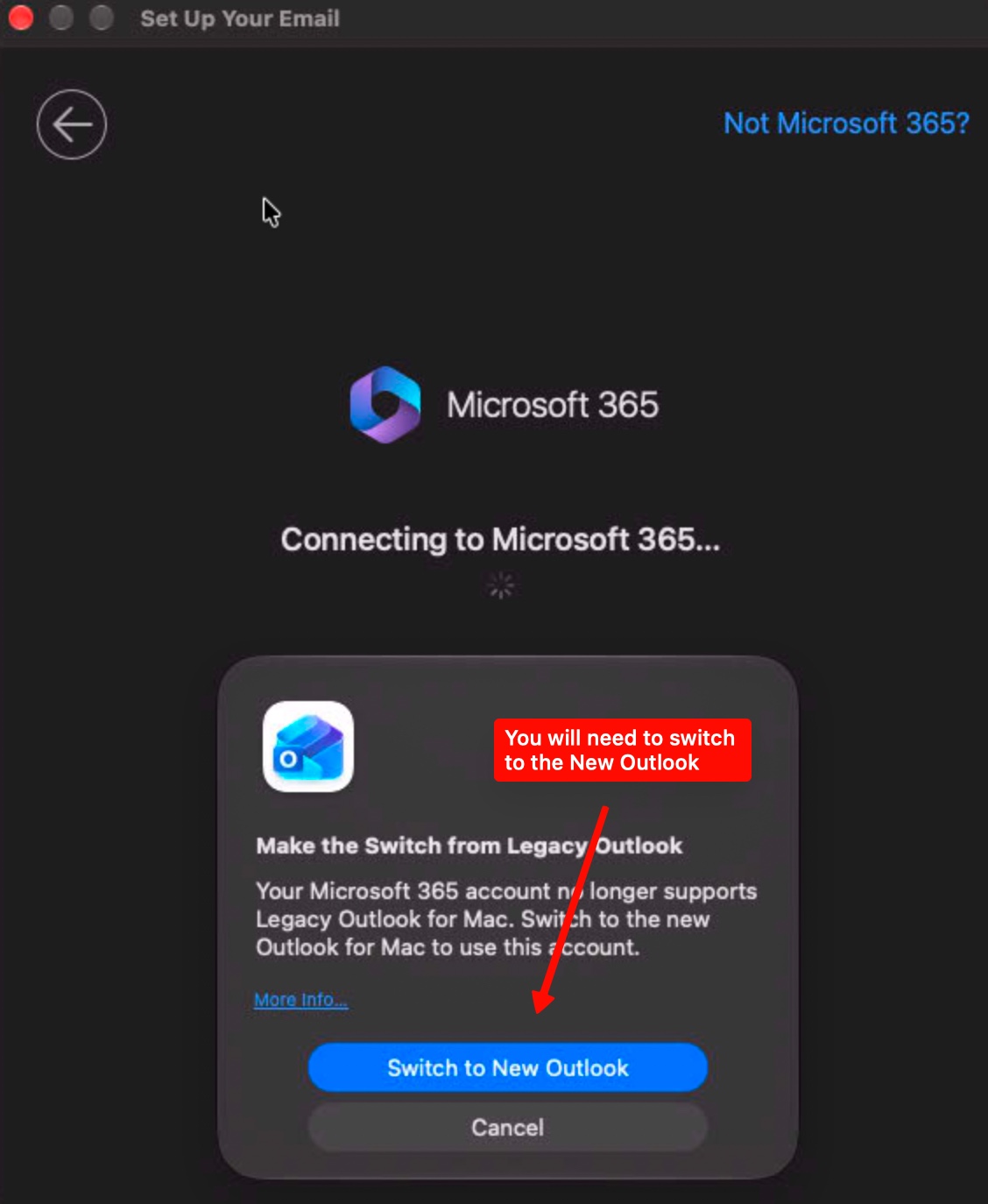
- If prompted to switch from Legacy Outlook, select Switch to New Outlook.
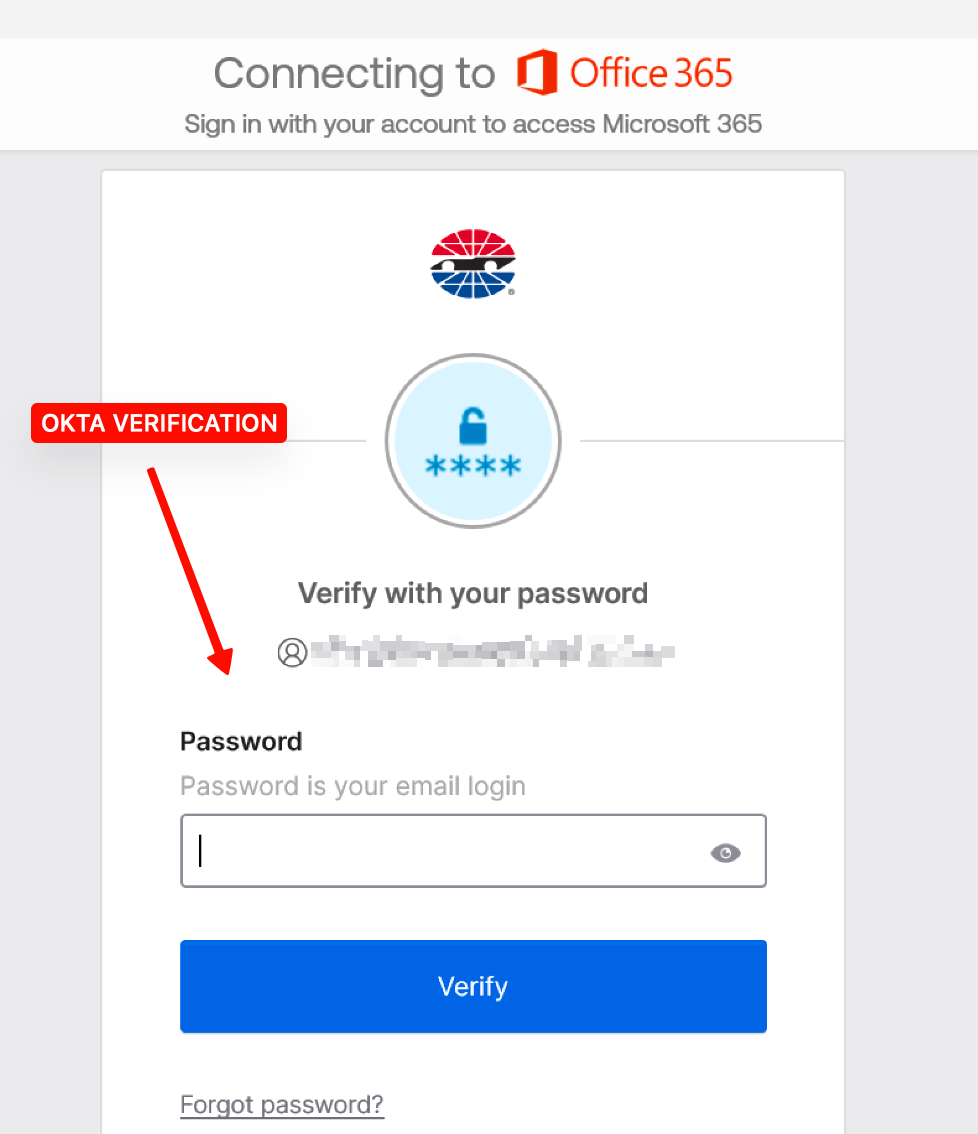
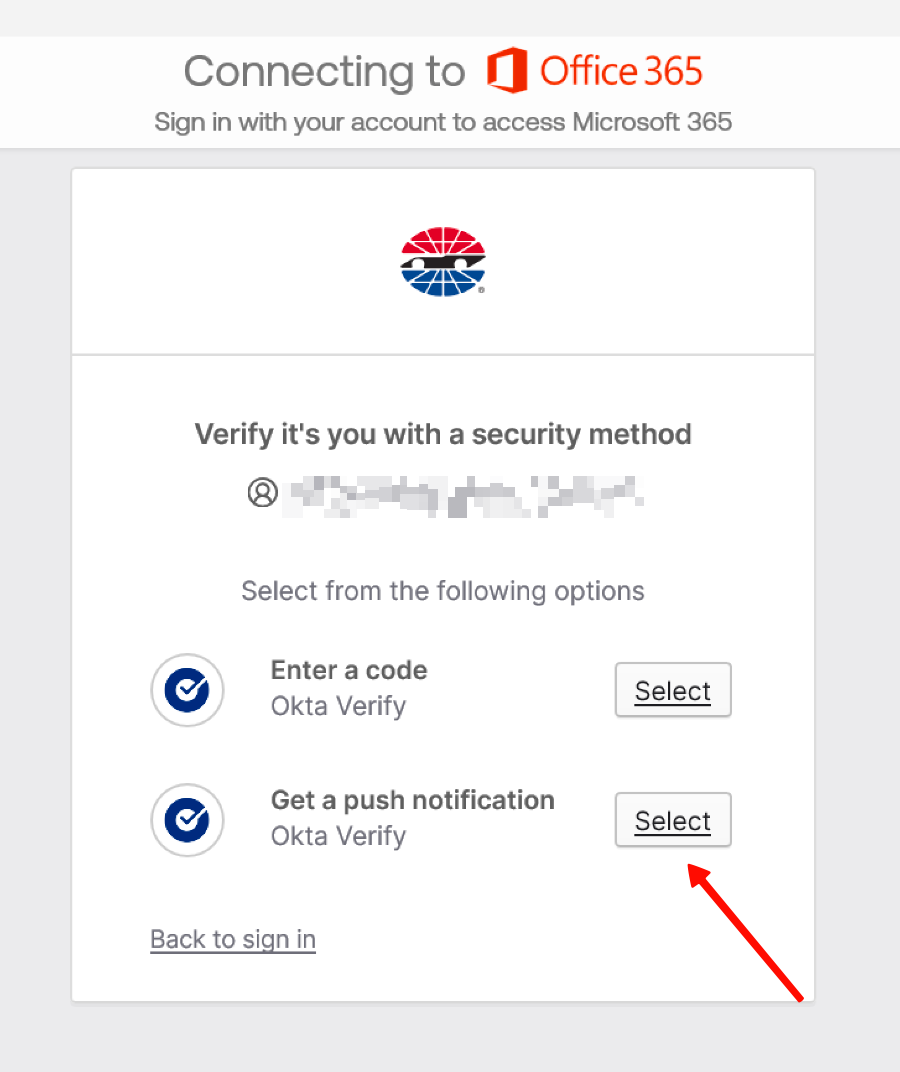
- At the Okta screen, enter your password and select Verify. If asked to choose a security method, select Get a push notification.
- Open Okta Verify on your phone and approve the sign-in you started. Follow any remaining prompts in Outlook.
You’re done when Outlook opens your work mailbox and calendar.
It may take some time for all your email to sync to your computer.
See sign-in screens
Follow the screens in order. Some prompts may not appear.
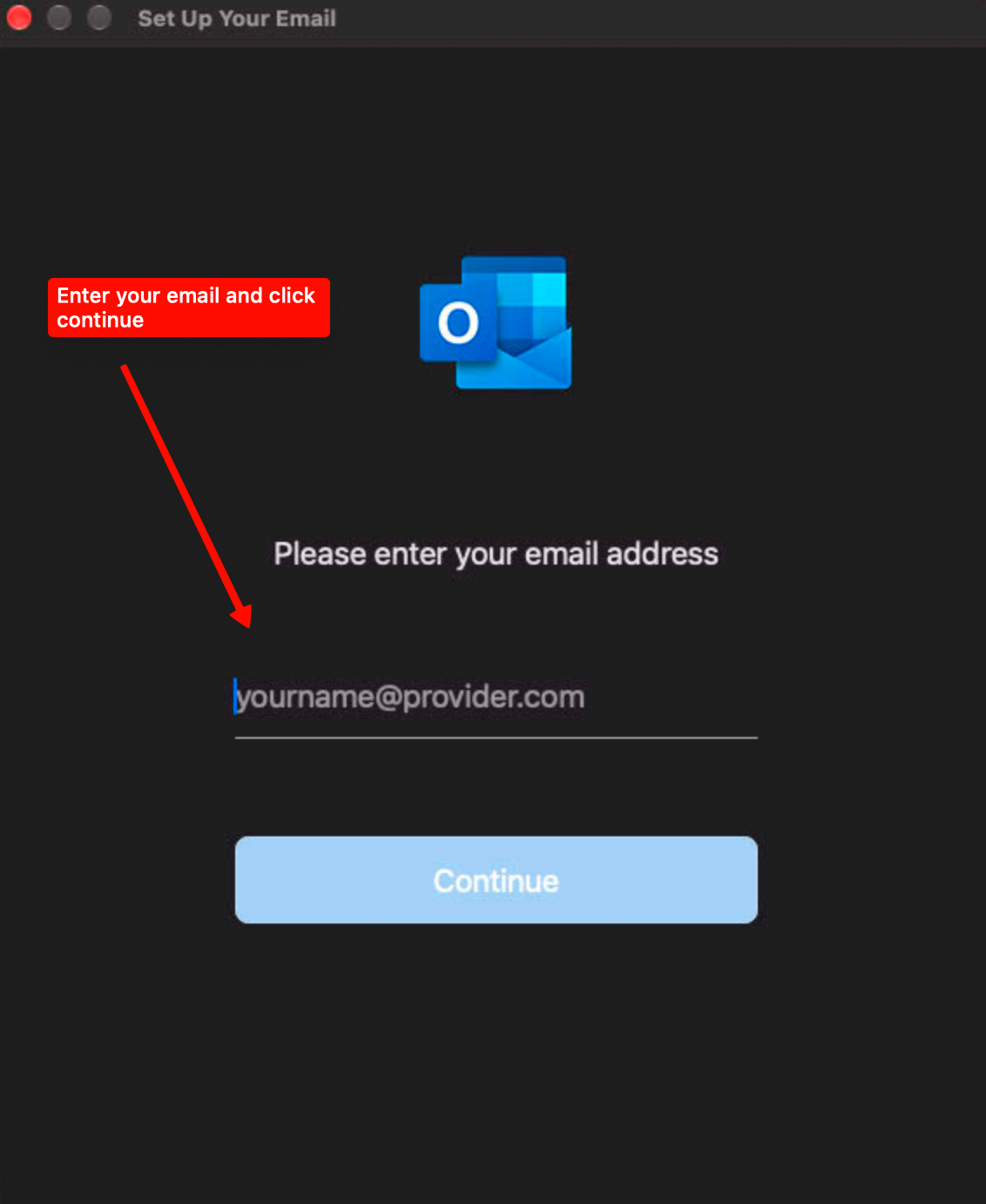
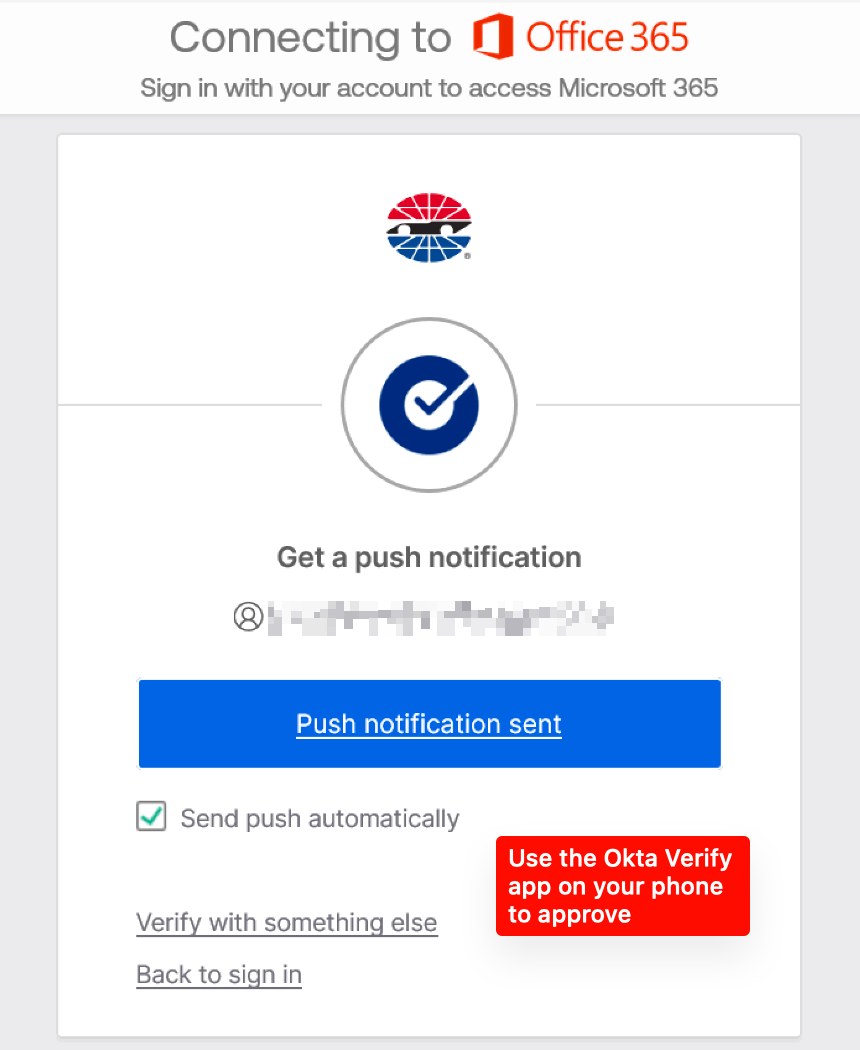
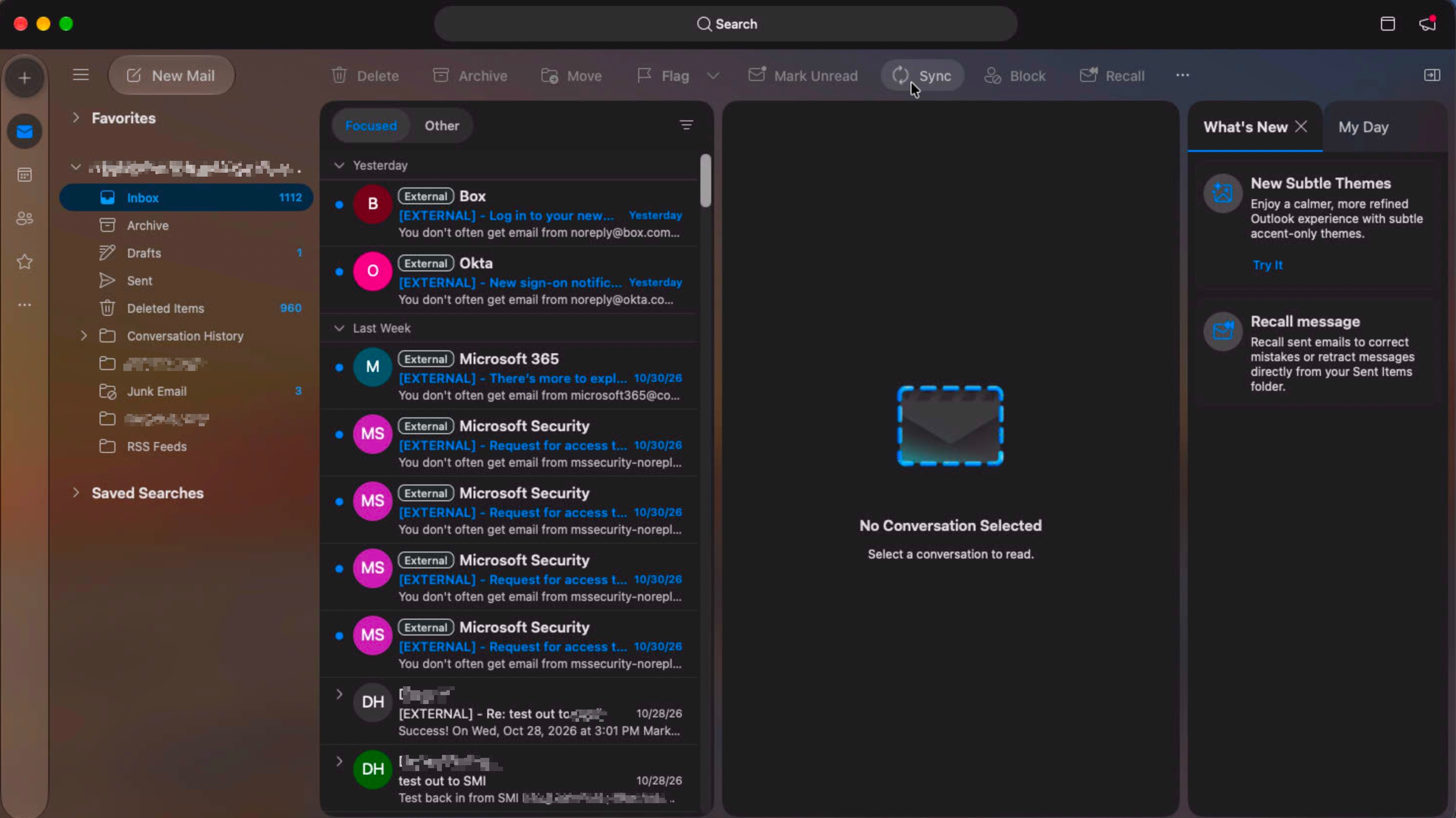
If you can’t sign in, contact IT. In the meantime, you can try Outlook on the web.
iPhone or iPad
- Open Outlook. If needed, download Microsoft Outlook from the App Store.
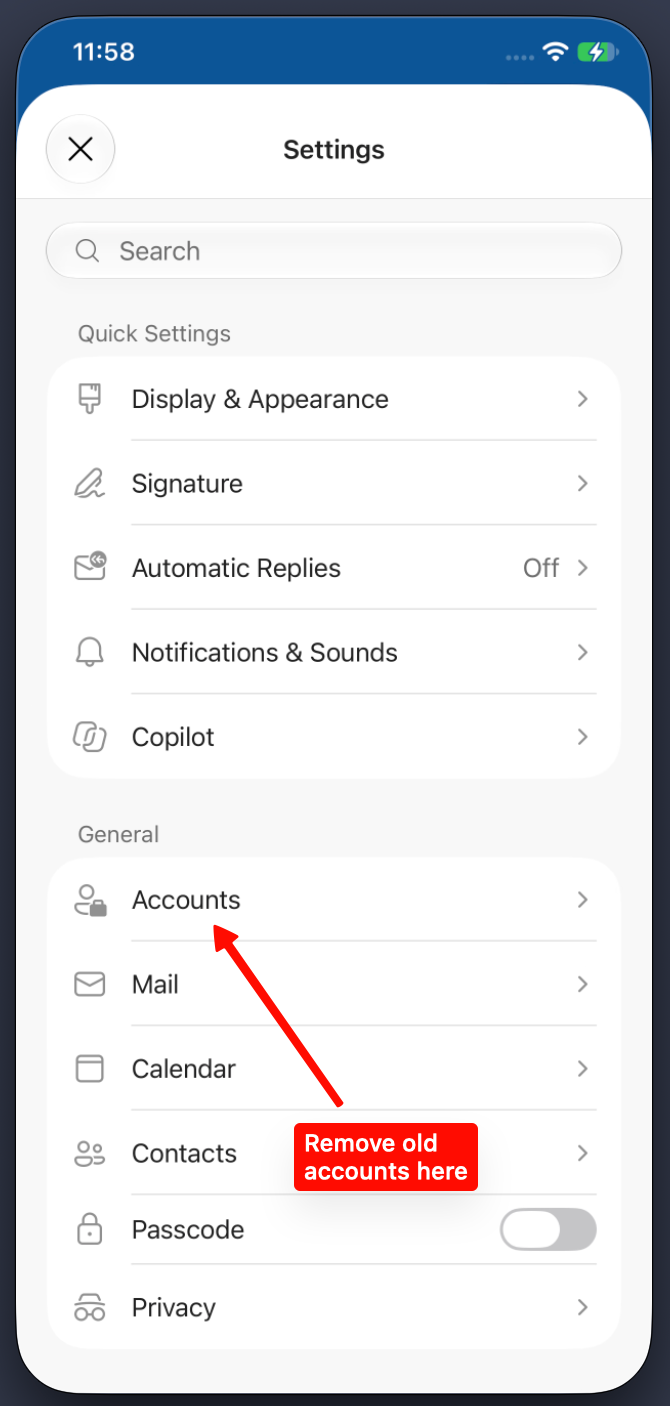
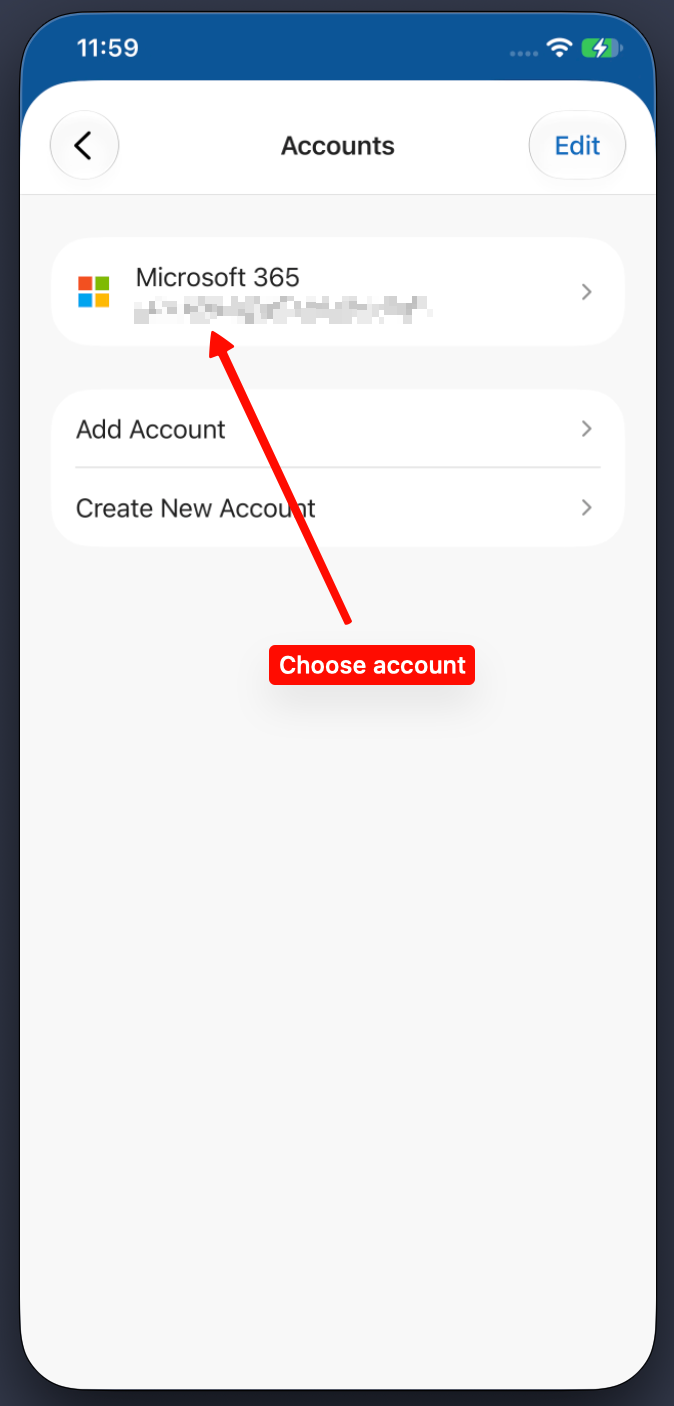
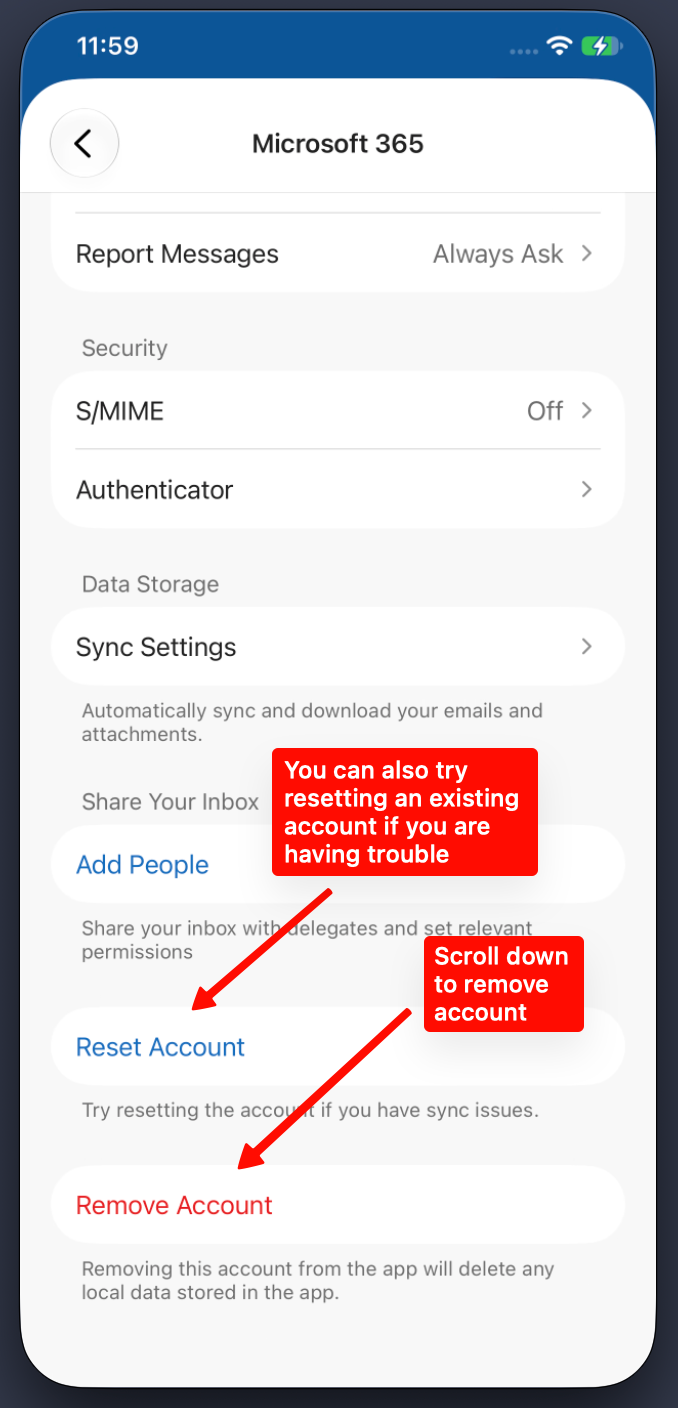
- If your old work account is already in Outlook, tap your account icon next to Inbox, then the Settings gear. Tap Accounts, select your old work account, scroll down, and tap Remove Account.
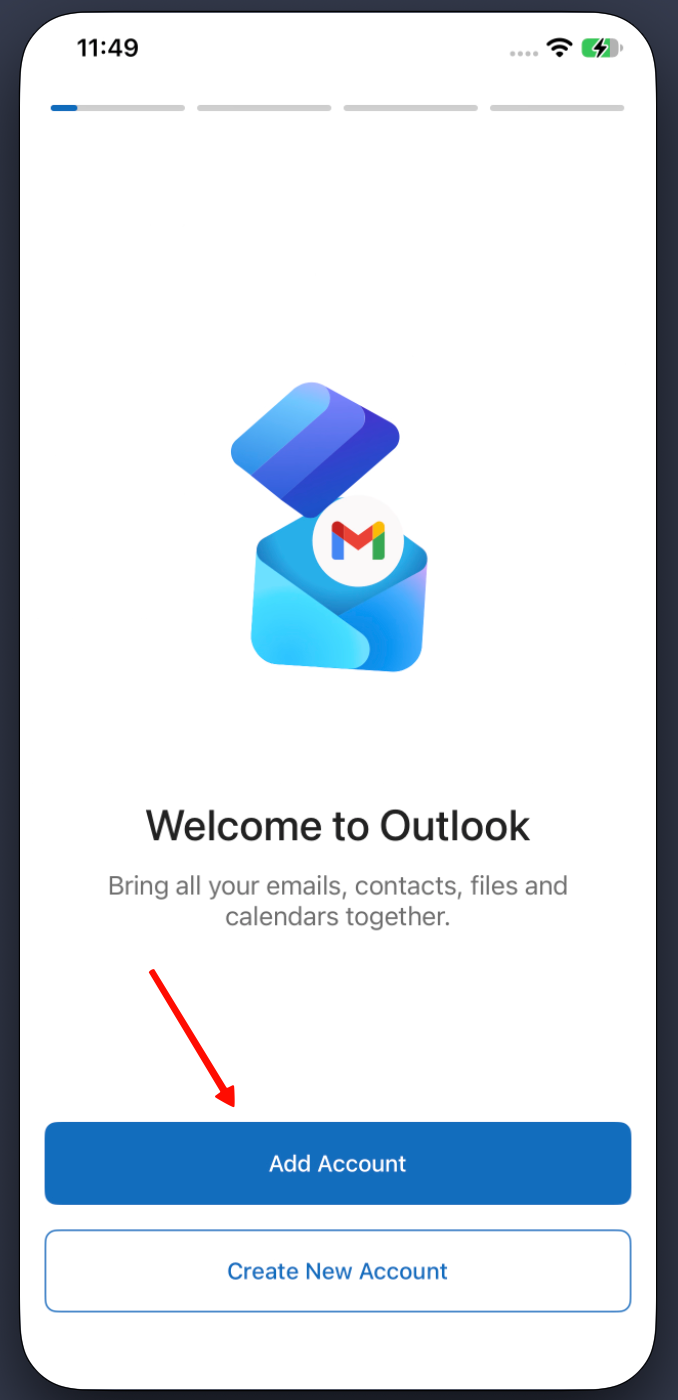
- To add your new work account, go to Settings → Accounts → Add Account → Email Account. If Outlook is new to you, tap Add Account on the welcome screen.
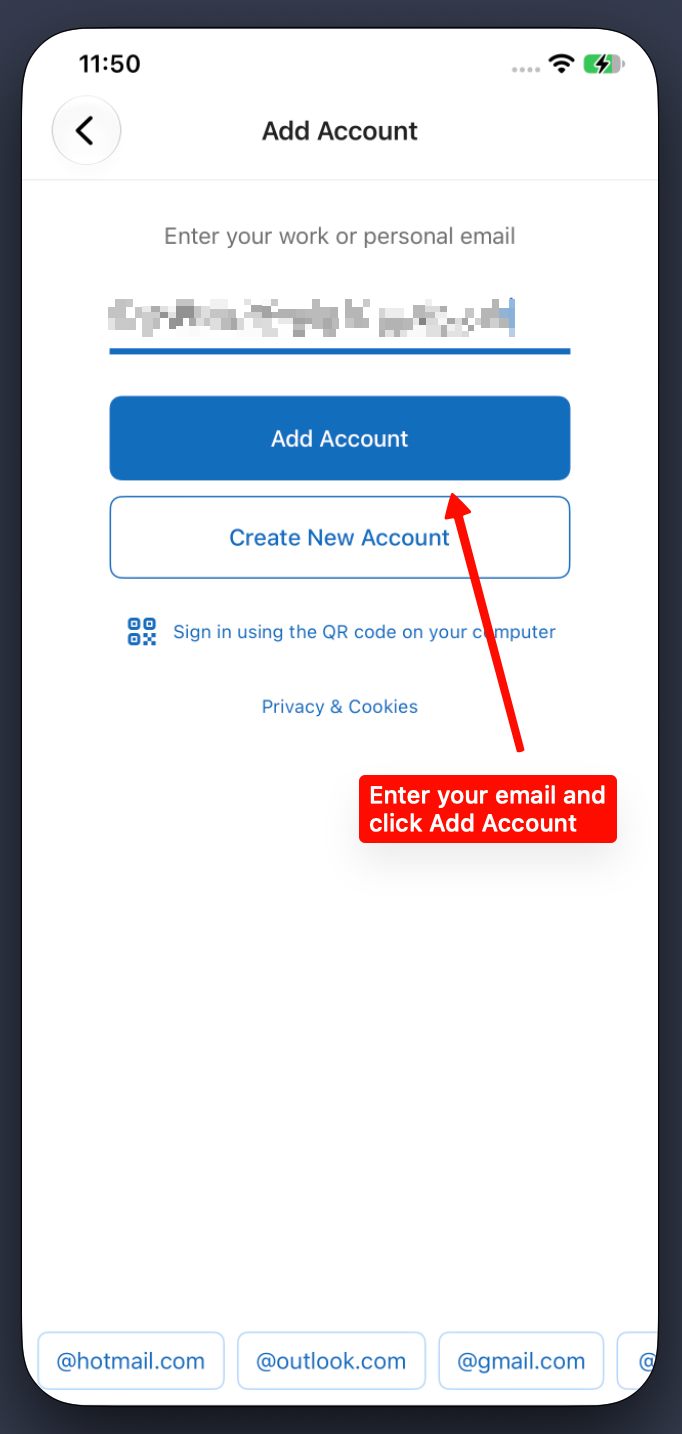
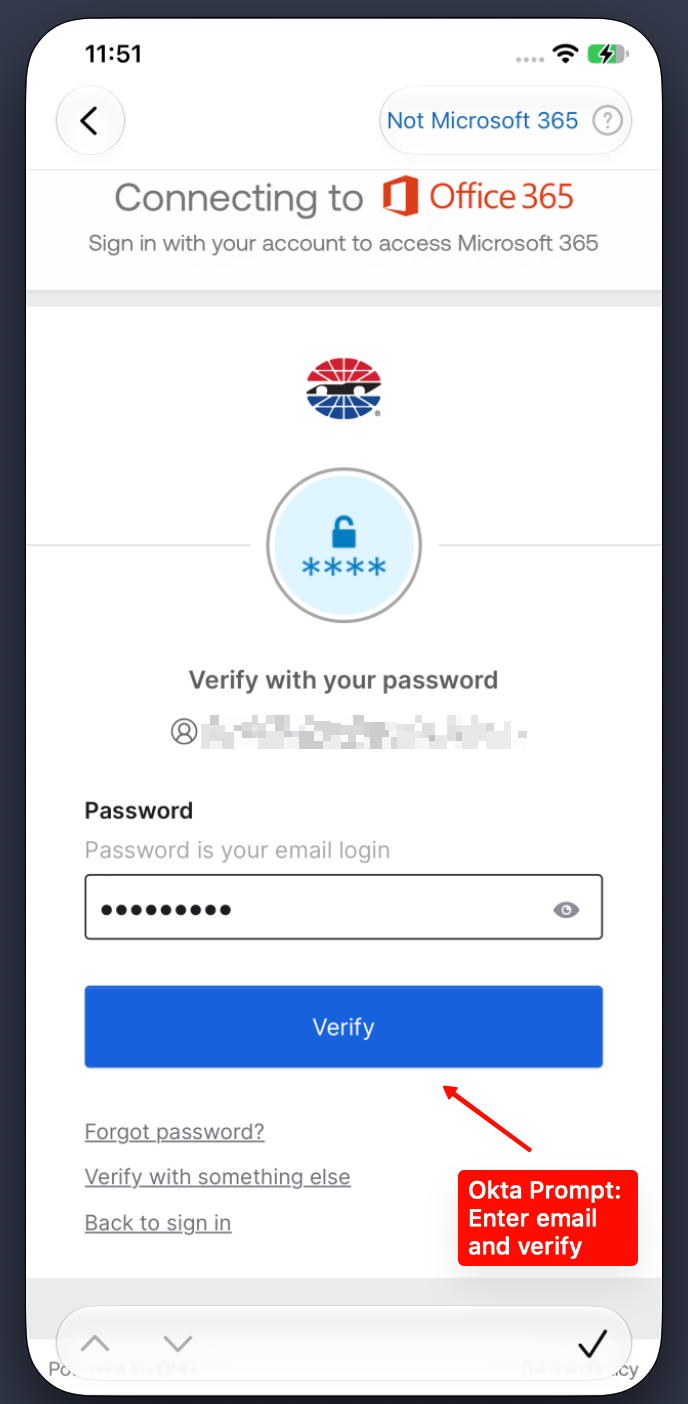
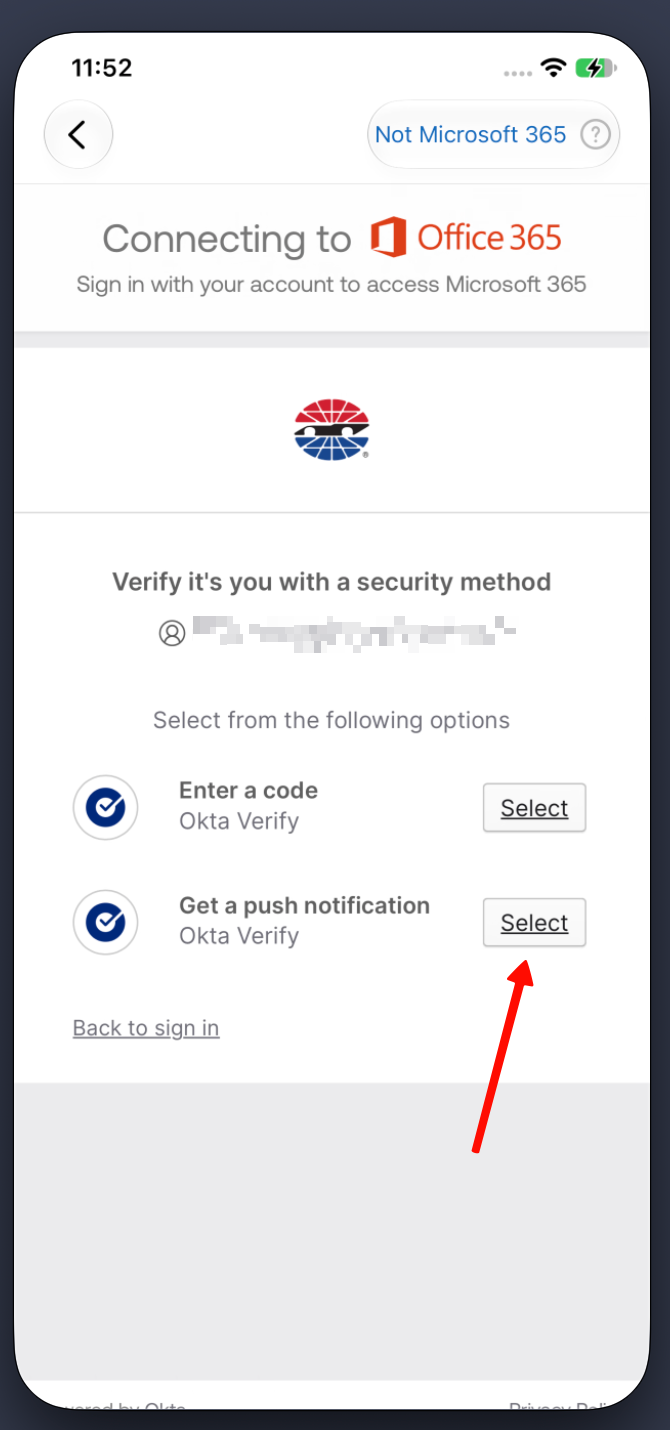
- Enter your work email address and tap Add Account. Enter your password at the Okta prompt, then select an Okta Verify method and approve the sign-in you started.
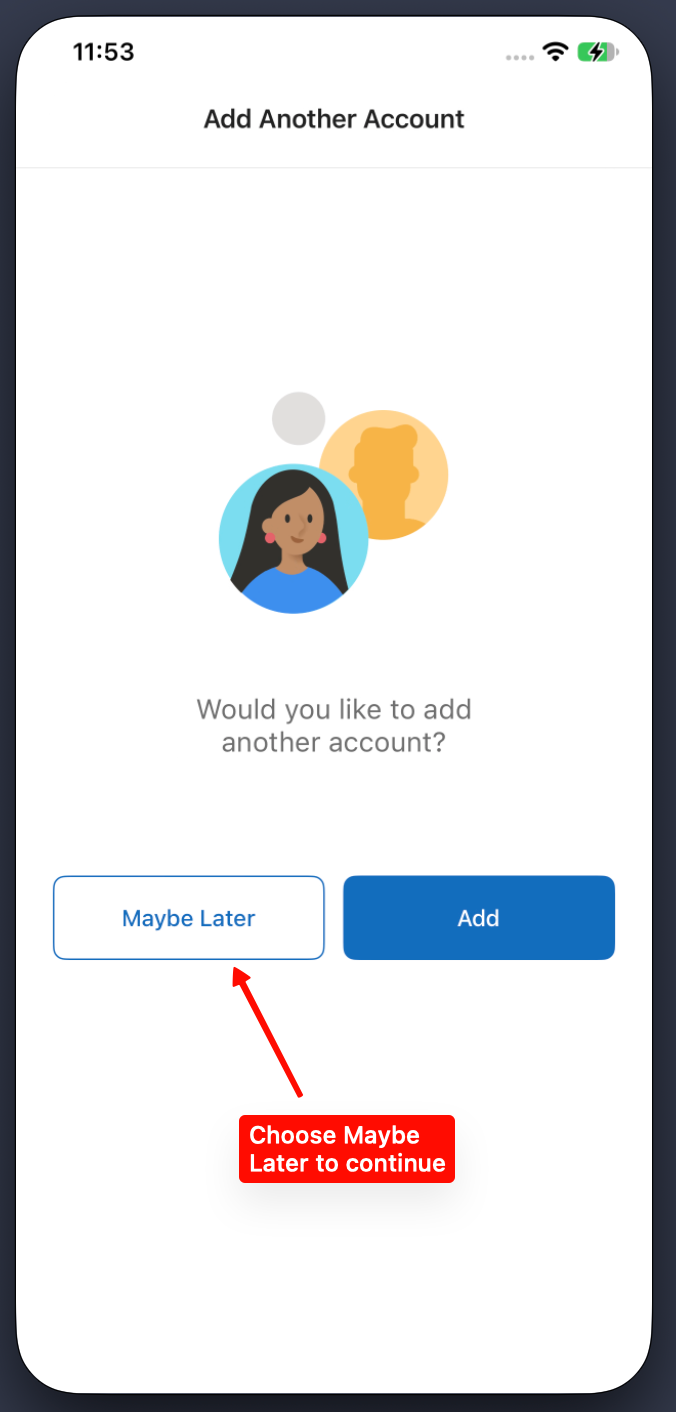
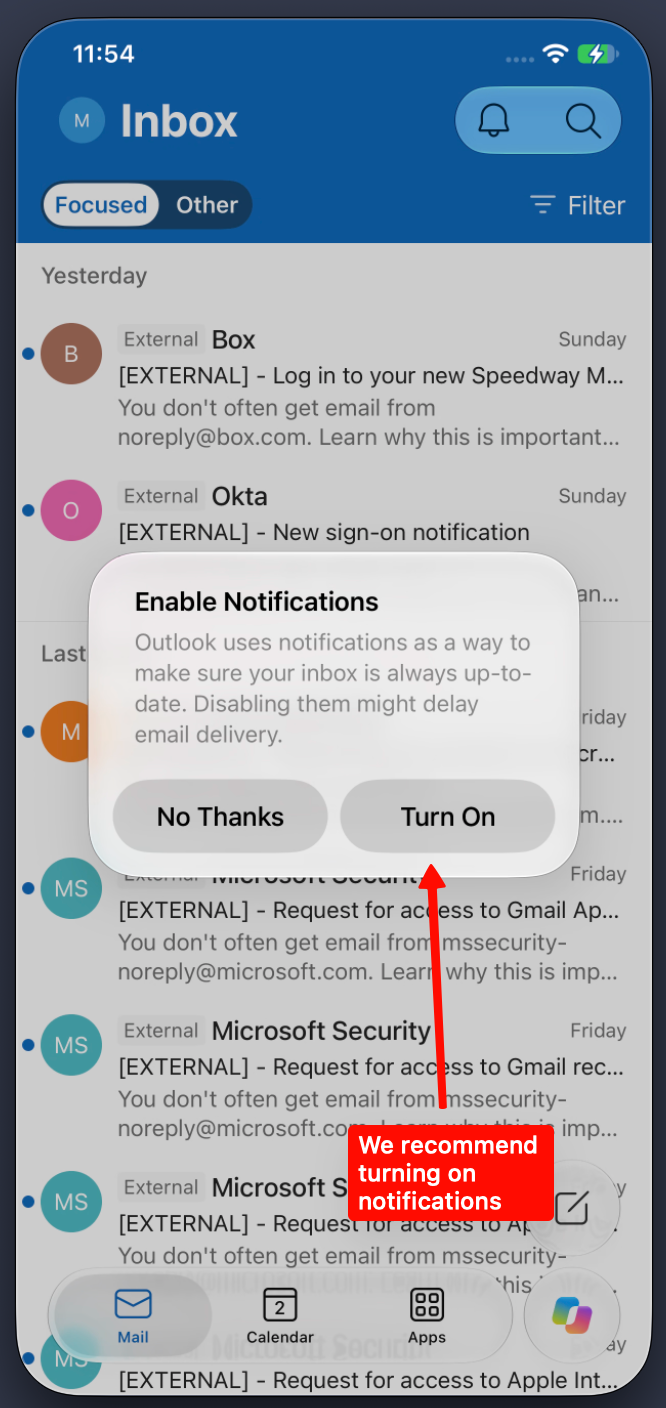
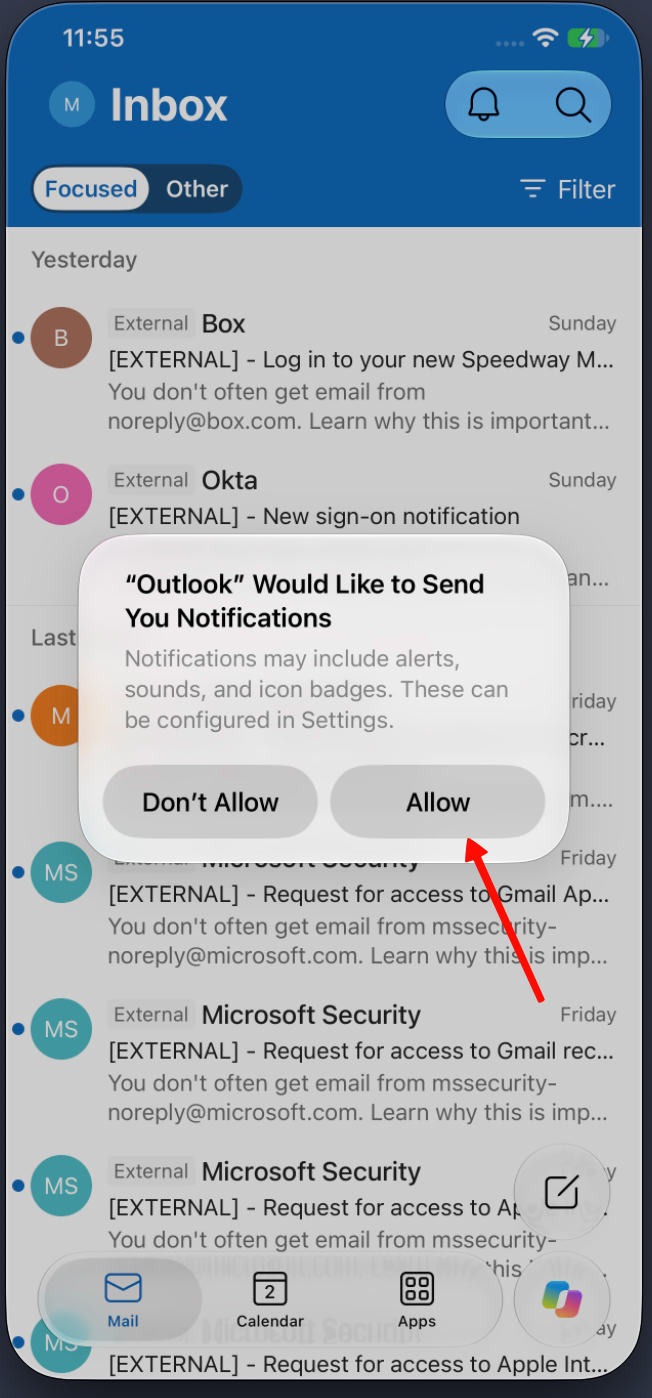
- If asked to add another account, tap Maybe Later. We recommend turning on notifications; if asked by your iPhone or iPad, tap Allow.
You’re done when your work email and calendar appear in Outlook.
See setup screens
Follow the screens that apply to you. Your experience may vary.
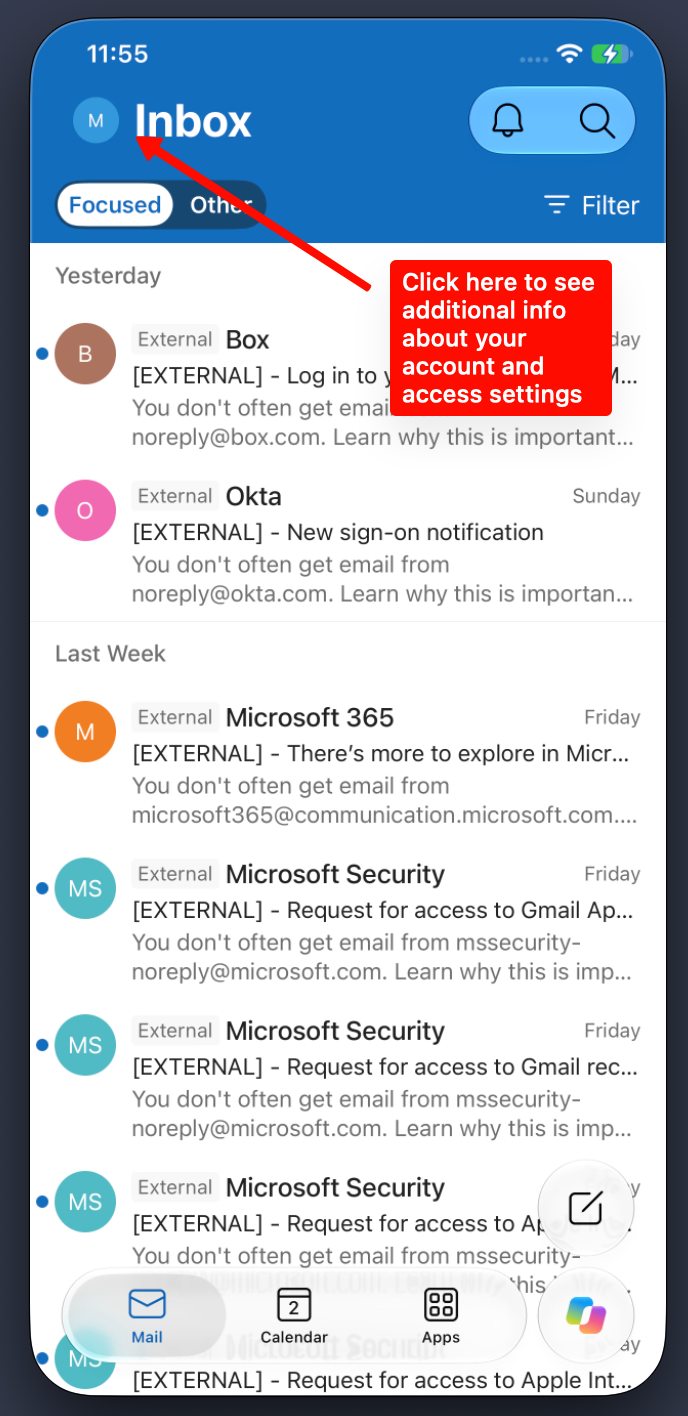
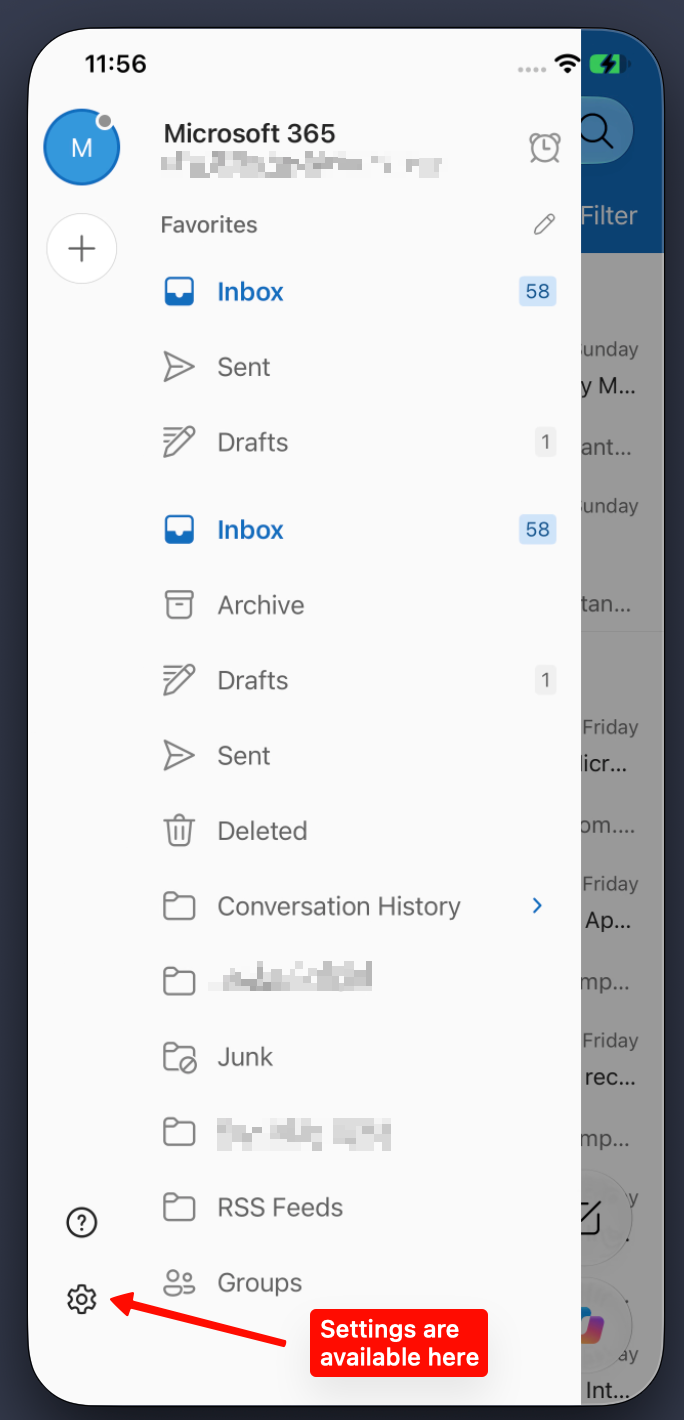
Need help? Contact IT. You can also use Outlook on the web.
More help: Microsoft’s Outlook setup guide · Apple’s App Store guide
Android phone or tablet
We recommend using the Outlook app on Android. Other email apps may work, but Outlook is the only app supported by IT.
- Open Outlook. If needed, install it from Google Play.
- If you already use Outlook, open its settings and remove your old work account. Then choose Add Account to add your new work account.
- Enter your work email address and sign in through Okta. If prompted, open Okta Verify and approve the sign-in you started.
You’re done when your work email and calendar appear in Outlook.
Need help? Contact IT.
Outlook on the web
- Open outlook.office365.com in your browser.
- Enter your work email address. Sign in through Okta and approve the request on your phone if prompted.
You’re done when you can see your work email and calendar.
Can’t sign in? Contact IT.
Personal computer
IT’s automatic reset does not run on personal computers.
- Open your browser and go to outlook.office365.com.
- Enter your work email address, sign in through Okta, and approve the request if prompted.
You’re done when your work email and calendar are available.
To use desktop Outlook, remove your old work account and add your new work account. For help, contact IT.
Frequently asked questions
Is my email address changing?
Your email address will stay the same, but some users may have a different sign-in account. Refer to the information in your migration email.
Will I lose my old email?
No. Your old mail is being moved for you. It may take around 24 hours to fully appear.
What is Okta? Do I need it?
Yes. Email sign-in goes through Okta from now on. Okta is the sign-in service for your company apps. Okta Verify is the app on your phone that approves your sign-in.
I don’t have Okta Verify or never got an activation email.
Contact IT before the move so you can sign in when the move is complete.
Can I keep using the Mail app on my phone?
It may work, but IT only supports Outlook. Follow the phone guide to set it up.
Why don’t I see my signature when I type?
CodeTwo, the company signature system, adds it after you send. The person you send to will see it.
Where are my OneDrive or Teams files?
They are not moved for you. Copy anything you need to your company Box account by end of day Friday, November 6. Follow the Files guide.
I have a personal computer. What do I do?
Personal computers are outside the scope of normal IT support. Outlook should work if you remove your old work account and add your new one. Contact IT if you need further instructions.
I use a shared or team mailbox.
It should appear in Outlook on its own. If it is missing after a day, contact IT.
Outlook keeps asking for my password.
- Check your sign-in name against your email from IT. It may differ from your email address.
- Close Outlook and restart your computer.
- Open Outlook and try signing in through Okta. Approve the notification on your phone.
- If the prompt continues, stop and contact IT.
How do I know a message about this move is real?
Real messages about the move come only from help@speedwaymotorsports.com. IT will never ask for your password or Okta code. If something looks off, don’t click it. Contact IT using Get Help.
Get help
Your email may not work during the move. Use the support form to request help.
Try Outlook on the web
If your desktop Outlook needs troubleshooting, use Outlook on the web to access your email in the meantime.